Automatic Vectorization for CAD: Converting Point Clouds to DXF and Vector Deliverables

Automatic vectorization is the process of converting dense point cloud data into clean vector geometry—lines, polylines, polygons, and curves—that can be used directly in CAD software like AutoCAD, Civil 3D, or MicroStation. This transformation bridges the gap between raw 3D survey data and production-ready design deliverables.
Lidarvisor - Vectorization

Why Vectorization Matters

Point clouds contain millions of individual points, each representing a surface location. While powerful for visualization and analysis, raw point clouds are difficult to use for design work. CAD applications need defined geometry: property boundaries, building footprints, contour lines, road edges, and utility locations.

Point Clouds vs. CAD Requirements

Point Cloud Data CAD Requirements
Millions of discrete points Clean lines and shapes
Unstructured geometry Layer-organized features
Large file sizes (GB) Manageable drawings (MB)
3D visualization 2D/3D design workflows
Analysis-focused Production-focused

Benefits of Automatic Vectorization

  • Time savings: Hours instead of days of manual tracing
  • Consistency: Uniform linework quality across projects
  • Accuracy: Algorithm-derived geometry from source data
  • Scalability: Process large areas efficiently
  • Integration: Direct CAD compatibility

Types of Vector Features

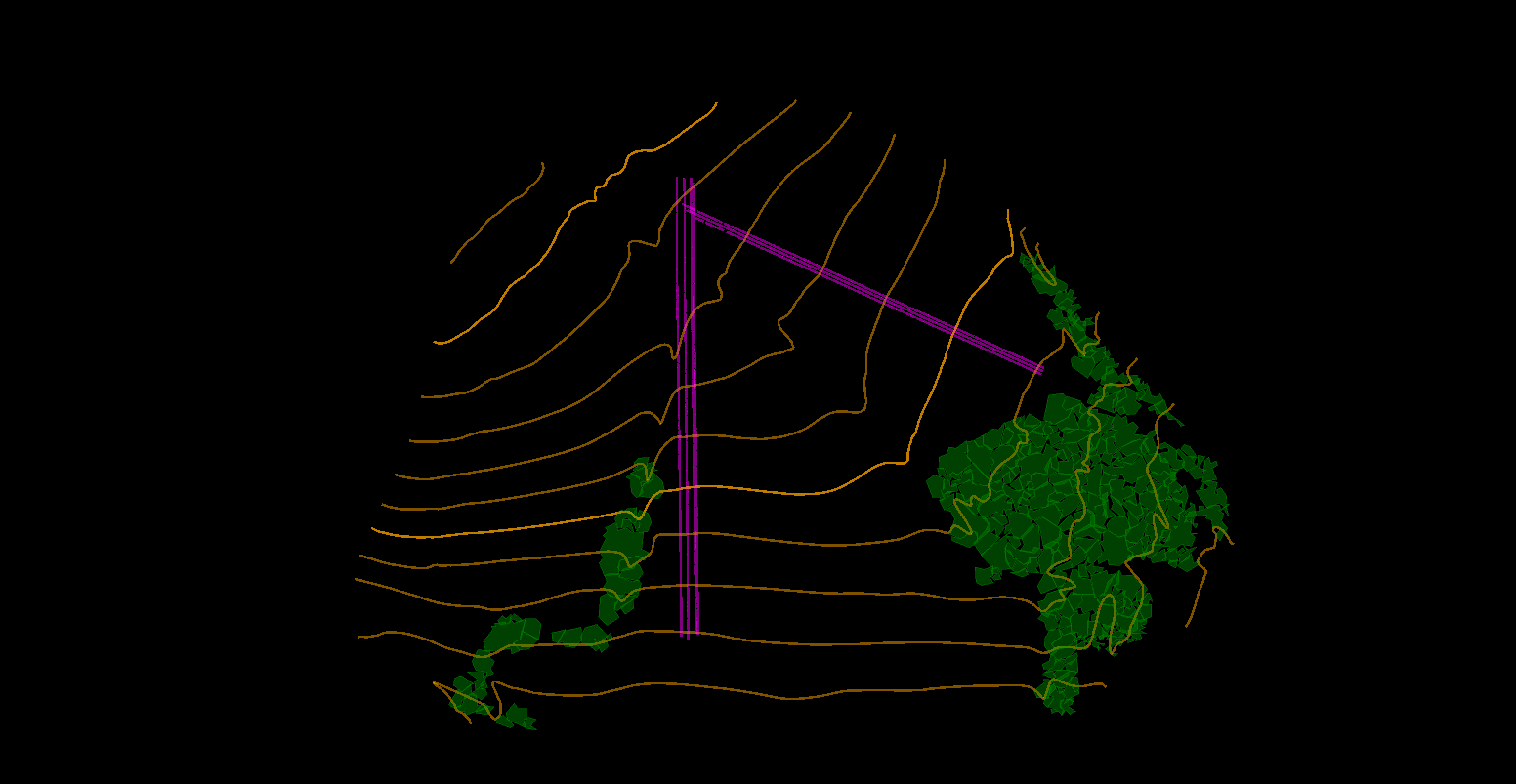
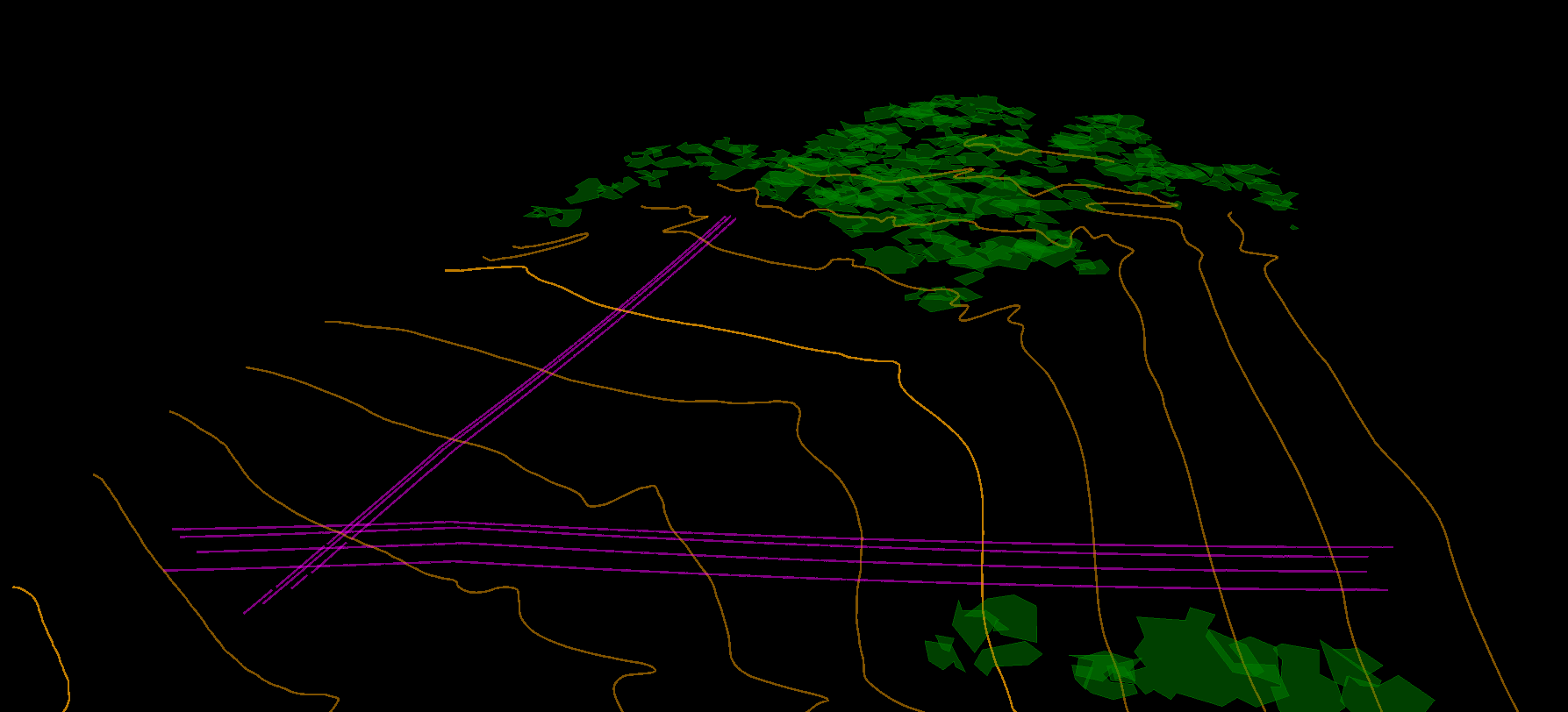
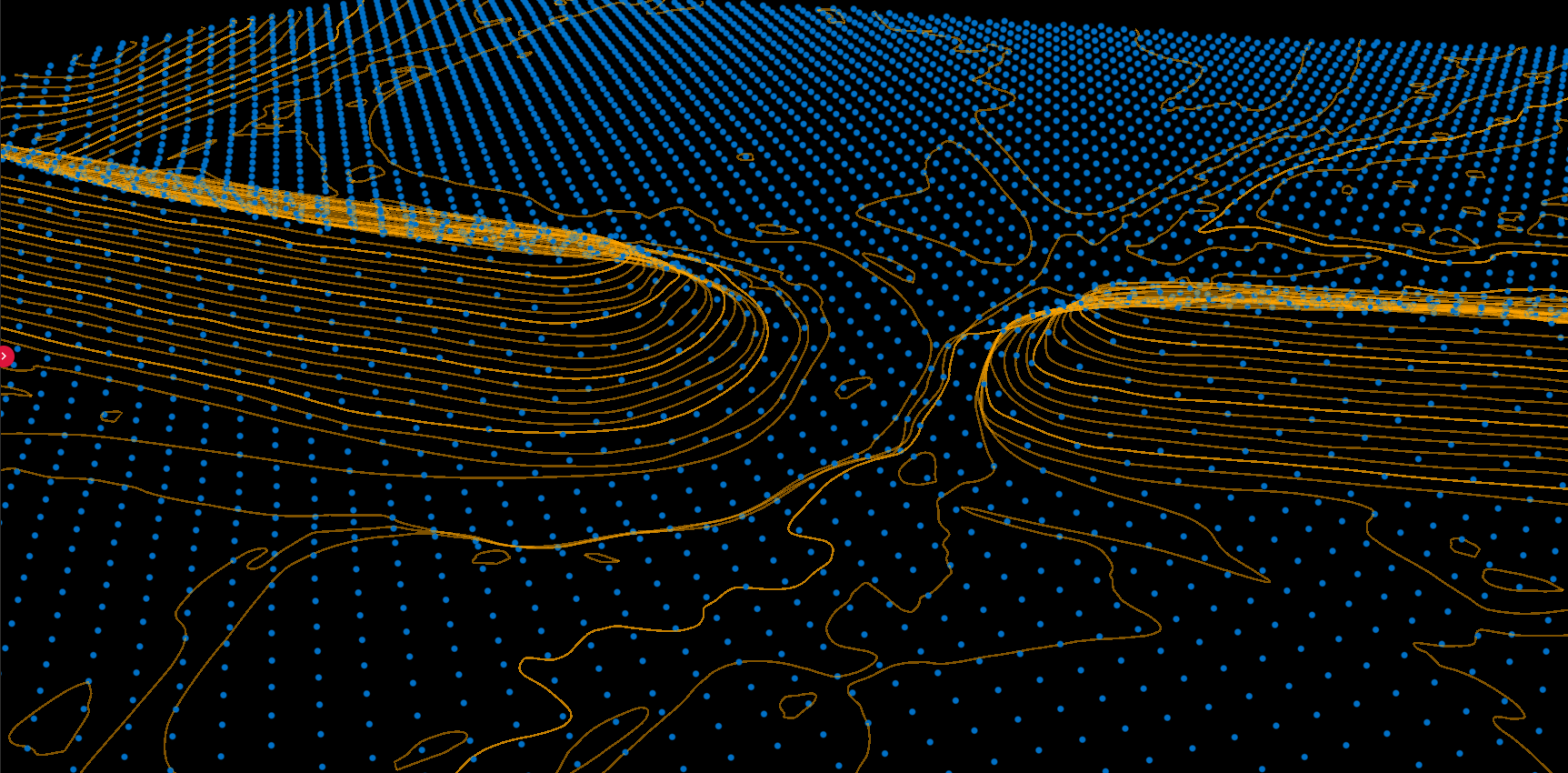
Contour Lines

Contour lines connect points of equal elevation, representing terrain shape:

  • Major contours: Index lines at regular intervals (5m, 10m, 50m)
  • Minor contours: Intermediate lines for detail (1m, 2m)
  • Depression contours: Indicate closed low areas
  • Supplementary contours: Half-interval lines in flat terrain

CAD output: Polylines at specific elevations, often with elevation attributes.

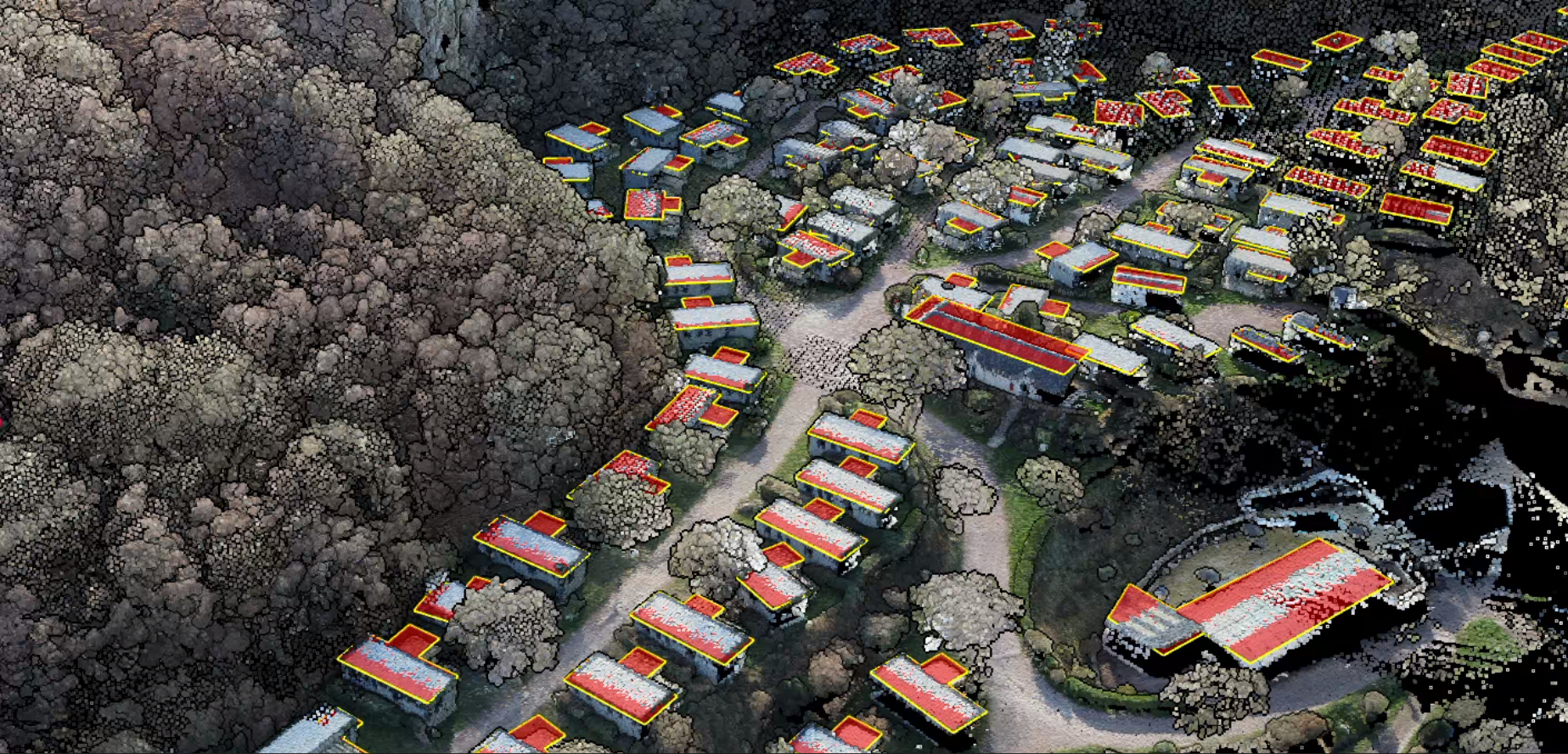
Building Footprints

Outlines of structures extracted from classified point clouds:

  • Roof outlines: Perimeter of detected buildings
  • Simplified polygons: Regularized shapes for mapping
  • 3D building models: Extruded footprints with heights

CAD output: Closed polylines or polygons, typically 2D with height attributes.

Breaklines

Lines representing terrain discontinuities:

  • Ridge lines: Local high points
  • Valley lines: Drainage paths
  • Road edges: Pavement boundaries
  • Retaining walls: Vertical faces
  • Water features: Shorelines, stream banks

CAD output: 3D polylines preserving elevation changes.

Tree and Vegetation Features

Individual vegetation elements:

  • Tree crowns: Polygon outlines of canopy extent
  • Tree tops: Point locations of highest canopy points
  • Tree stems: Estimated trunk locations

CAD output: Points, circles, or polygons depending on detail level.

Infrastructure Features

Utility and transportation elements:

  • Power line conductors: 3D polylines following wire paths
  • Poles and towers: Point locations with attributes
  • Road centerlines: Derived from edge detection
  • Curb lines: Edge features along roadways

CAD output: 3D polylines, points with symbology.

The Automatic Vectorization Workflow

Step 1: Point Cloud Preparation

Before vectorization, ensure data quality:

Classification:

  • Ground points separated from above-ground features
  • Buildings identified and labeled
  • Vegetation classified by height strata

Cleaning:

  • Noise removed
  • Gaps identified
  • Coordinate system verified

Step 2: Feature Extraction

Algorithms detect features from classified points:

Contour generation:

  1. Create triangulated surface from ground points
  2. Intersect surface with horizontal planes at contour intervals
  3. Connect intersection points into polylines
  4. Smooth and simplify results

Building extraction:

  1. Identify building-classified point clusters
  2. Compute alpha shapes or convex hulls
  3. Regularize geometry (orthogonalize corners)
  4. Simplify to specified tolerance

Breakline extraction:

  1. Analyze terrain surface for slope discontinuities
  2. Trace ridge and valley lines
  3. Connect into continuous features
  4. Attribute with elevations

Step 3: Geometry Optimization

Raw extracted features need refinement:

  • Simplification: Reduce vertex count while preserving shape
  • Smoothing: Remove noise-induced irregularities
  • Regularization: Align to dominant orientations (orthogonal buildings)
  • Topology: Ensure features connect properly

Step 4: Layer Organization

Organize features by type and attribute:

Layer Name Contents Color (typical)
CONTOUR_MAJOR Index contours Brown
CONTOUR_MINOR Intermediate contours Light brown
BUILDING_FOOTPRINT Structure outlines Red
BREAKLINE_RIDGE Ridge lines Orange
BREAKLINE_VALLEY Valley/drainage Blue
TREE_CROWN Vegetation outlines Green
TREE_TOP Tree top points Dark green

Step 5: Export to CAD Formats

Generate deliverables in standard formats:

DXF (Drawing Exchange Format)

  • Universal CAD compatibility
  • Supports 2D and 3D geometry
  • Layer and attribute preservation
  • Most common deliverable format

DWG (AutoCAD native)

  • Full AutoCAD feature support
  • Smaller files than DXF
  • Requires compatible software

Shapefile (SHP)

  • GIS standard format
  • Attribute table support
  • Multiple geometry types
  • Easy GIS integration

GeoJSON

  • Web-friendly format
  • Human-readable
  • Coordinate system support
  • Modern GIS workflows

Vectorization Quality Factors

Source Data Quality

Factor Impact on Vectorization
Point density Detail level of extracted features
Classification accuracy Correct feature identification
Noise level Smoothness of output geometry
Coordinate precision Positional accuracy of vectors

Algorithm Parameters

Contour generation:

  • Interval spacing
  • Smoothing tolerance
  • Minimum length threshold

Building extraction:

  • Minimum building size
  • Regularization angle tolerance
  • Simplification threshold

Breakline detection:

  • Slope threshold
  • Minimum length
  • Connection tolerance

Manual vs. Automatic Balance

Even “automatic” vectorization often benefits from:

  • Parameter tuning for specific terrain
  • Manual review of results
  • Editing of problem areas
  • Attribution verification

Best Practices

Before Vectorization

  1. Verify classification quality — Vectorization accuracy depends on correct point labels
  2. Define deliverable requirements — What features, what formats, what tolerances?
  3. Understand terrain characteristics — Flat vs. steep, urban vs. rural
  4. Set appropriate parameters — Match contour interval to terrain variation

During Vectorization

  1. Process in manageable tiles for large projects
  2. Review intermediate results before full processing
  3. Maintain consistent parameters across project area
  4. Document processing settings for reproducibility

After Vectorization

  1. Visual QC against source data — Check alignment and completeness
  2. Verify topology — Features should connect properly
  3. Check attribute values — Elevations, classifications, IDs
  4. Test CAD import — Confirm layer structure and compatibility

Common Challenges and Solutions

Challenge: Noisy Contours

Symptoms: Contour lines with excessive vertices, jagged appearance

Solutions:

  • Increase smoothing tolerance
  • Filter point cloud noise before vectorization
  • Use lower resolution for regional contours

Challenge: Missing Building Corners

Symptoms: Rounded corners, irregular footprints

Solutions:

  • Increase regularization strength
  • Verify building classification completeness
  • Adjust minimum building size threshold

Challenge: Broken Breaklines

Symptoms: Disconnected ridge/valley features

Solutions:

  • Lower connection tolerance
  • Reduce minimum length threshold
  • Manual connection of critical features

Challenge: Over-Simplified Features

Symptoms: Loss of important detail

Solutions:

  • Reduce simplification tolerance
  • Process at higher resolution
  • Use different parameters for different feature types

Frequently Asked Questions

What file format should I use for CAD delivery?

DXF is the most universal format, compatible with virtually all CAD software. Use DWG for AutoCAD-specific projects. Include SHP or GeoJSON if recipients also use GIS software.

How accurate is automatic vectorization?

Accuracy depends on source data quality and algorithm parameters. Contours typically match source DTM accuracy (5–15 cm for LiDAR). Building footprints may have 10–30 cm positional uncertainty at edges.

Can I vectorize photogrammetry point clouds?

Yes, but with limitations. Photogrammetry captures surfaces, not classified features. Contours work well; building and vegetation extraction may require additional classification or manual work.

How do I handle very large projects?

Process in tiles, maintain consistent parameters across tiles, and merge results. Cloud-based solutions often handle tiling automatically.

Do I still need manual drafting?

For most projects, some manual editing improves results. Critical features, complex structures, and edge cases benefit from human review. Automatic vectorization handles 80–95% of the work.

What contour interval should I use?

Match interval to terrain variation and map scale. Common choices: 1–2m for detailed engineering, 5m for general mapping, 10–20m for regional overview. Include both major and minor contours for versatility.

Conclusion

Automatic vectorization transforms dense point clouds into production-ready CAD deliverables, dramatically reducing the time and effort required to create contours, building footprints, breaklines, and other vector features. Modern algorithms and AI-powered tools continue to improve accuracy and reduce manual intervention.

The key to successful vectorization is quality source data—accurate classification and clean point clouds produce clean vectors. Combined with appropriate parameter selection and quality control, automatic vectorization delivers professional results efficiently.

LidarVisor automatically extracts contours, building footprints, tree crowns, and more from your LiDAR data. Upload your LAS file and download CAD-ready DXF files in minutes.

Create a FREE Account

Create a FREE account now to start processing your point cloud! Get 2 GB of storage and classify up to 10 hectares for free.