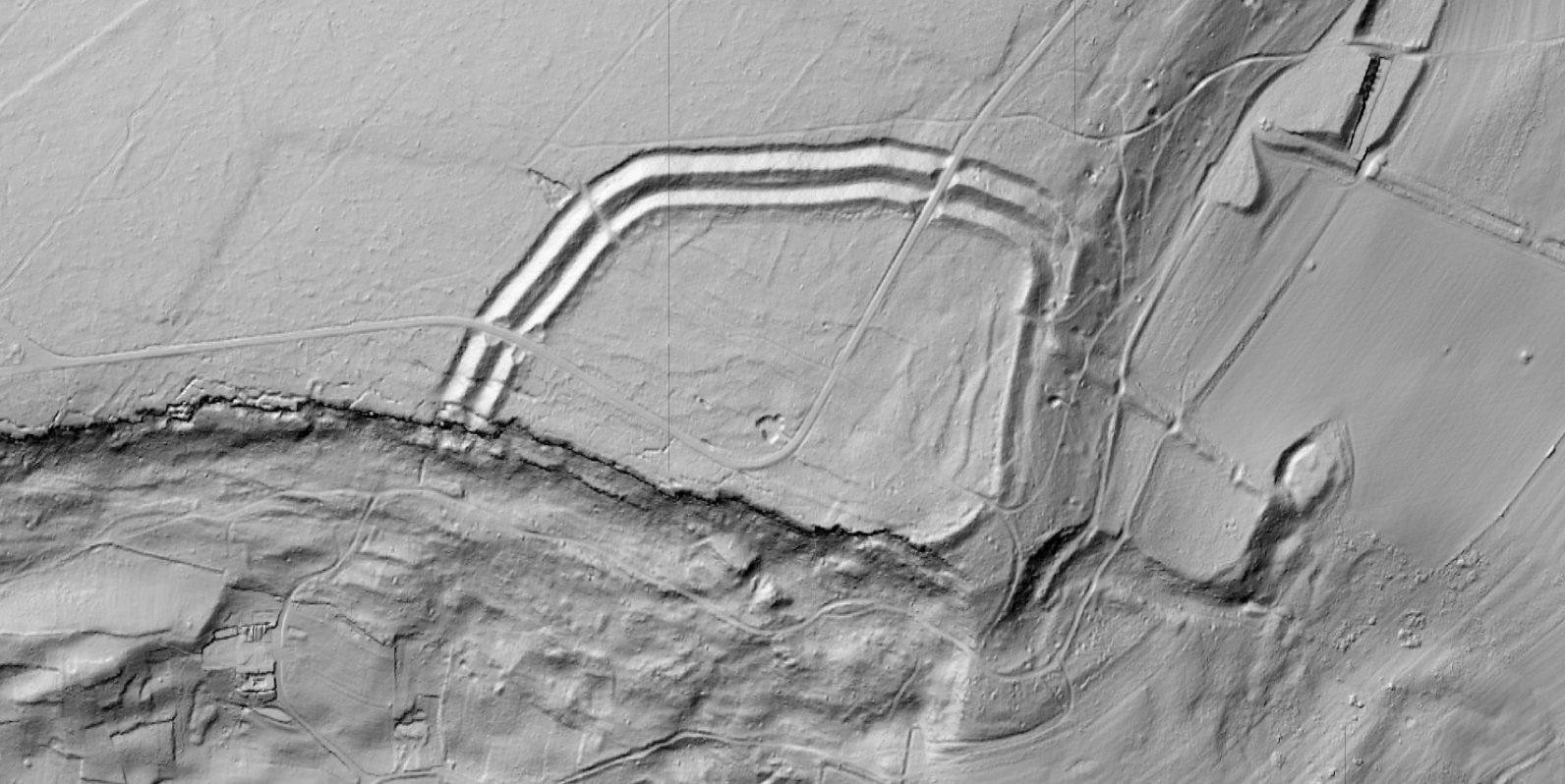
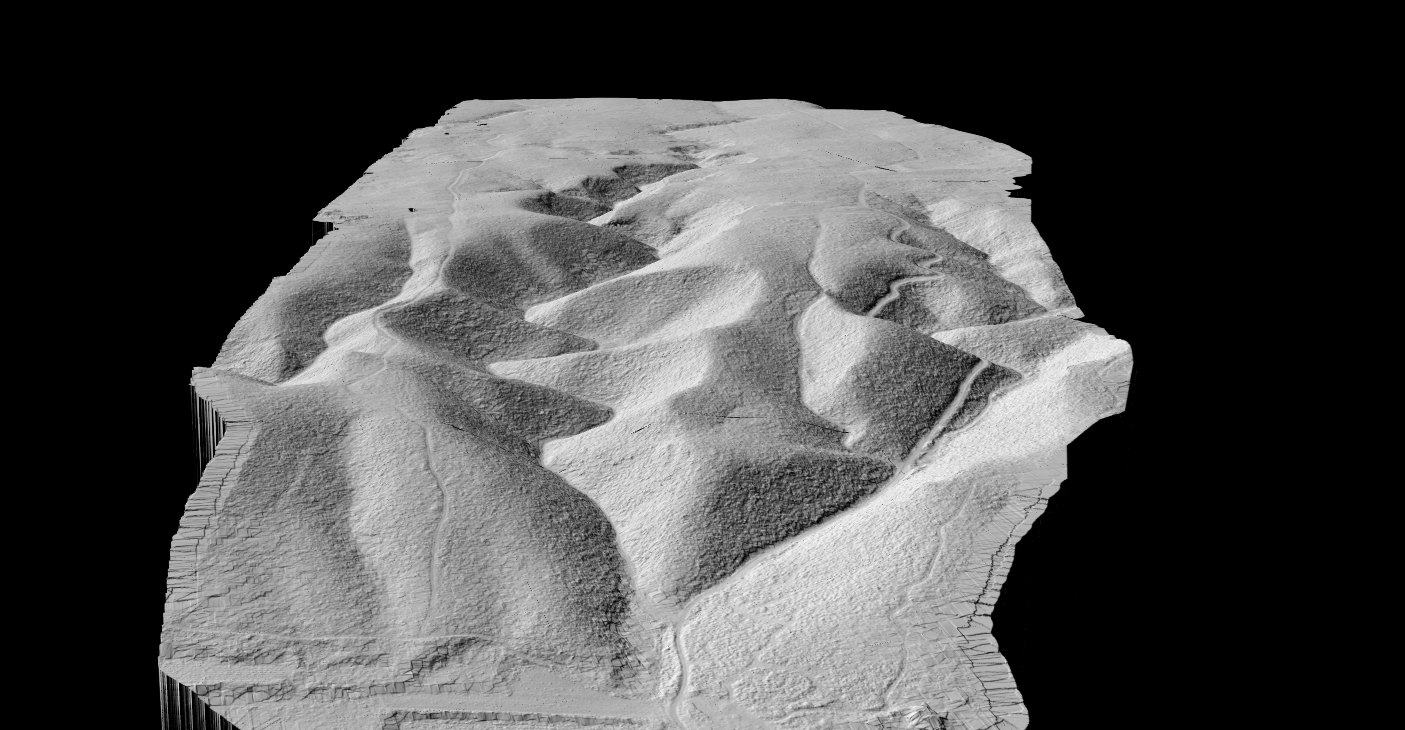
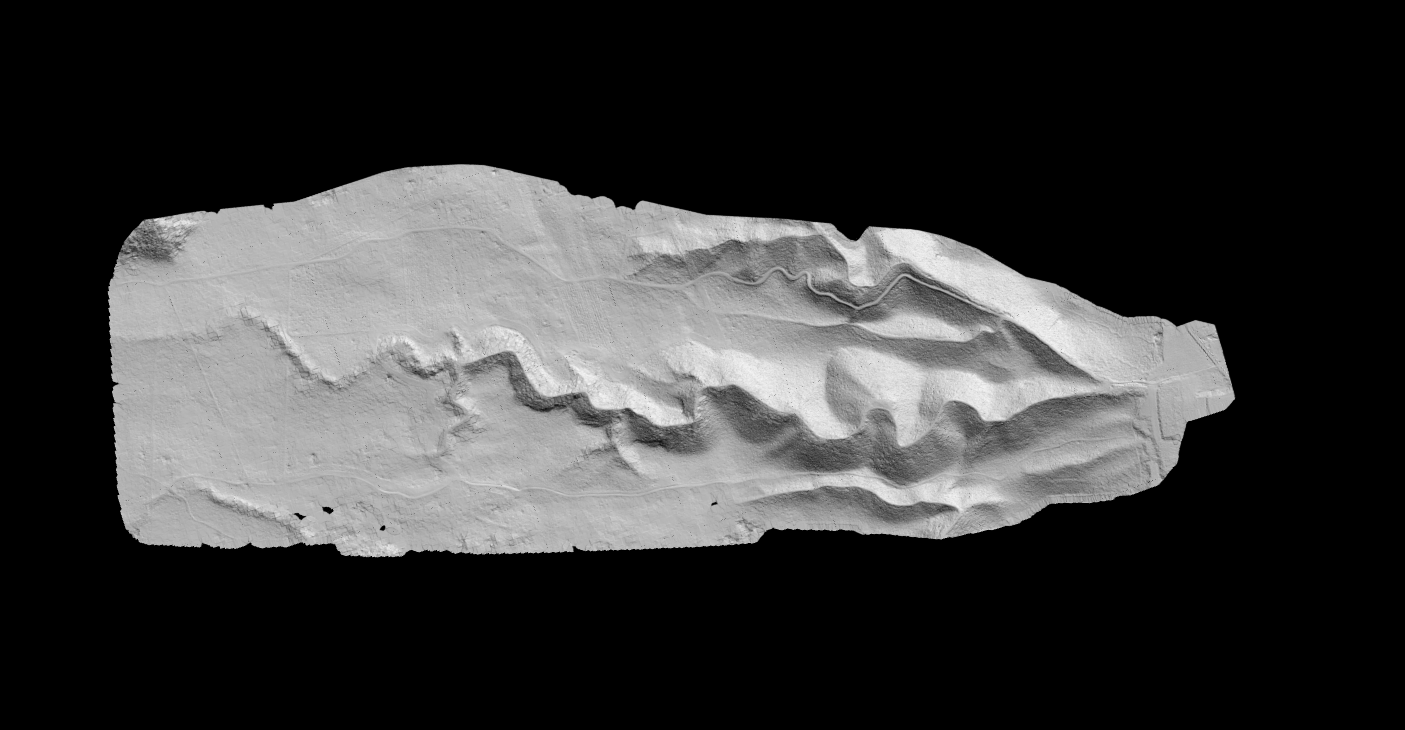
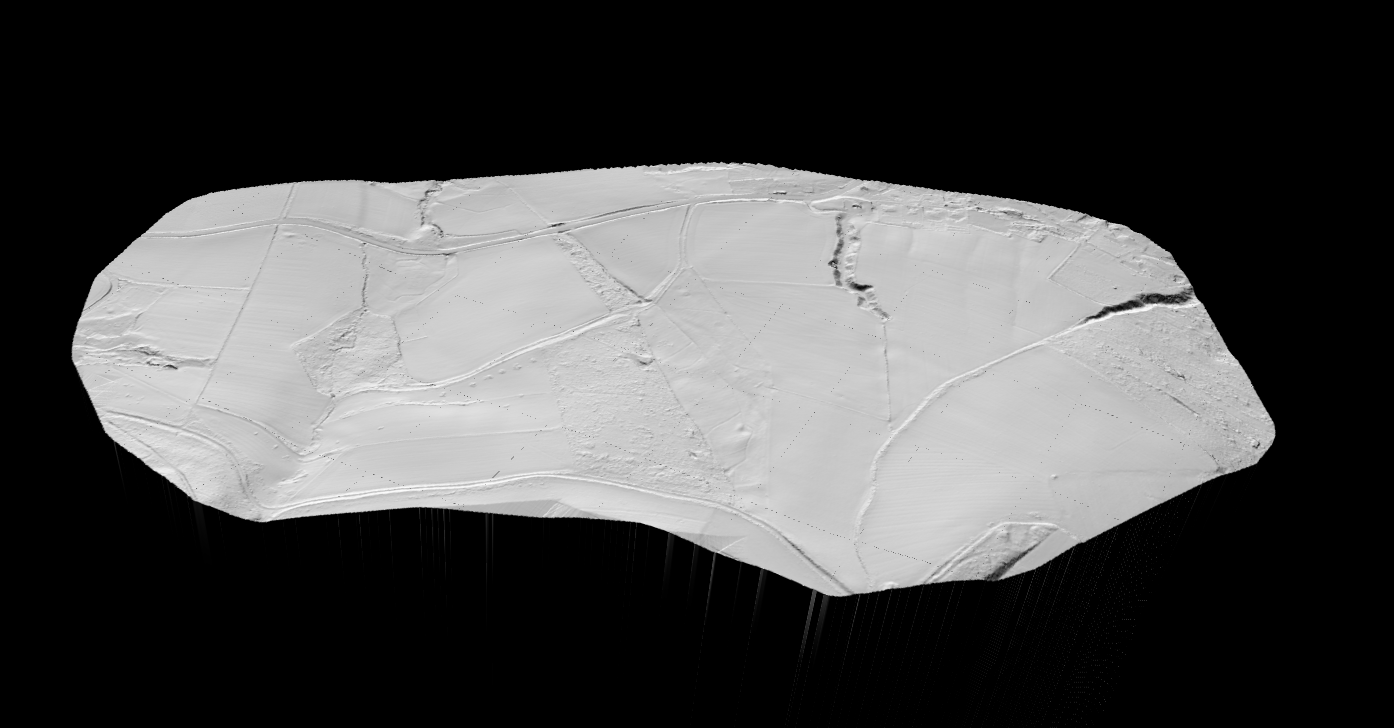
A hillshade map is a grayscale representation of terrain that simulates how sunlight and shadows would fall across a landscape. By modeling light hitting a surface from a specific direction, hillshading reveals the three-dimensional character of terrain on a flat map. Understanding this technique is essential for creating compelling terrain visualizations from elevation data.
Hillshade Map: How to Create Stunning Terrain Visualizations from Elevation Data

How Hillshading Works
Unlike elevation maps that show height through color gradients, hillshade maps use light and shadow to create an intuitive sense of topography. Ridges appear bright on the sun-facing side and dark in shadow. Valleys show the reverse pattern. The result is a realistic, easily understood terrain visualization.
Hillshade maps are created from Digital Elevation Models (DEMs), raster datasets where each cell contains an elevation value. The hillshade algorithm calculates how much light each cell would receive based on its slope, aspect, and the position of a simulated light source.
The Illumination Model
Hillshade calculations simulate a distant light source (the “sun”) shining on terrain:
- For each cell in the DEM: Calculate the slope (steepness) and aspect (compass direction the slope faces)
- Compare to light source position: How directly does light hit this surface? Is the surface facing toward or away from the light?
- Assign brightness value: Surfaces perpendicular to light rays are brightest (255), surfaces parallel are medium (128), and surfaces facing away are darkest (0)
Key Hillshade Parameters
Azimuth (Sun Direction)
The compass direction of the light source, measured in degrees clockwise from north:
| Azimuth | Direction | Effect |
|---|---|---|
| 0° | North | Shadows fall south |
| 90° | East | Shadows fall west |
| 180° | South | Shadows fall north |
| 270° | West | Shadows fall east |
| 315° | Northwest | Standard cartographic convention |
Why 315°? Northwest illumination is the cartographic standard because it creates intuitive shading for viewers, terrain appears to “pop” correctly rather than appearing inverted.
Altitude (Sun Elevation)
The angle of the light source above the horizon, in degrees:
| Altitude | Description | Effect |
|---|---|---|
| 0° | Sun at horizon | Extreme shadows, high contrast |
| 30° | Low sun | Strong shadows, dramatic relief |
| 45° | Common default | Balanced shadows and highlights |
| 60° | Moderate sun | Softer shadows |
| 90° | Sun directly overhead | No shadows (flat appearance) |
Typical range: 30–60° for most visualizations. Lower values emphasize subtle terrain features; higher values reduce shadow intensity.
Z-Factor (Vertical Exaggeration)
A multiplier applied to elevation values before hillshade calculation:
| Z-Factor | Effect |
|---|---|
| 0.5 | Subdued terrain (half vertical scale) |
| 1.0 | True scale (no exaggeration) |
| 2.0 | Enhanced terrain (double vertical scale) |
| 5.0+ | Dramatic exaggeration for subtle features |
When to use:
- Z=1: Accurate representation, steep terrain
- Z>1: Flat terrain where features are subtle
- Geographic coordinates: Adjust for latitude (degrees vs. meters)
Traditional vs. Multidirectional Hillshade
Traditional (Single-Source) Hillshade
Light from one direction creates strong directional bias:
Advantages:
- Simple, fast calculation
- Clear shadow patterns
- Traditional cartographic look
Limitations:
- Features perpendicular to light direction are poorly visible
- Strong shadows can obscure detail
- Directional artifacts
Multidirectional Hillshade
Combines light from multiple directions (typically 6–16 sources):
Advantages:
- Reveals features in all orientations
- More uniform illumination
- Reduced directional bias
- Better for complex terrain
Limitations:
- Flatter appearance
- Less dramatic visual impact
- Higher computation time
Best practice: Use multidirectional for analysis, traditional for cartographic products where dramatic effect is desired.
Creating Hillshade Maps
In QGIS (Free, Open Source)
Method 1: Raster Analysis Tool
- Load your DEM raster
- Go to Raster → Analysis → Hillshade
- Set parameters: Z factor (1), Azimuth (315), Altitude (45)
- Click Run
Method 2: Raster Styling (Non-destructive)
- Right-click DEM layer → Properties
- Go to Symbology tab
- Select Hillshade render type
- Adjust azimuth, altitude, Z-factor
- Click Apply
In ArcGIS Pro
Method 1: Hillshade Tool
- Open Geoprocessing pane
- Search for Hillshade
- Set parameters: Input raster (your DEM), Azimuth (315), Altitude (45), Z factor (1)
- Click Run
Multidirectional Option: In the Hillshade tool, check Model shadows and select Multidirectional for combined illumination.
Combining Hillshade with Other Data
Hillshade + Elevation Colors
The most common combination overlays colored elevation on hillshade:
- Create hillshade layer (grayscale)
- Create elevation layer (color ramp)
- Set elevation layer blend mode to Multiply or Overlay
- Adjust transparency as needed
Result: Color shows elevation while hillshade provides 3D effect.
Hillshade + Slope
Combine hillshade with slope classification:
- Create hillshade layer
- Create slope raster
- Classify slope into categories
- Overlay with transparency
Result: Terrain shape plus slope steepness visualization.
Hillshade + Orthophoto
Drape aerial imagery over terrain visualization:
- Create hillshade layer
- Add orthophoto
- Set orthophoto blend mode to Multiply
- Adjust hillshade contrast
Result: Realistic terrain with photographic detail.
Hillshade Applications
Topographic Mapping
Standard component of topographic maps:
- Background terrain visualization
- Combined with contour lines
- Provides intuitive depth perception
Geological Analysis
Reveals structural features:
- Fault lines and fractures
- Bedding orientations
- Geomorphological patterns
- Landslide scars
Archaeological Prospection
Discovers hidden features:
- Ancient earthworks under vegetation
- Subtle terrain modifications
- Historical landscape features
- Field systems and boundaries
Hydrological Visualization
Shows water-related patterns:
- Drainage networks
- Watershed boundaries
- Flood-prone areas
- Channel morphology
Urban Planning
Communicates terrain constraints:
- Buildable vs. steep slopes
- Viewshed implications
- Grading requirements
- Natural drainage patterns
Optimizing Hillshade Quality
Resolution Considerations
| DEM Resolution | Hillshade Character |
|---|---|
| 30m (SRTM) | Regional overview, smooth |
| 10m | Good detail, common for mapping |
| 1–5m | High detail, shows micro-terrain |
| <1m (LiDAR) | Maximum detail, shows subtle features |
Higher resolution reveals more terrain detail but creates larger files.
Removing Artifacts
Striping: Caused by DEM production artifacts
- Solution: Apply smoothing filter before hillshade
Terracing: Caused by integer elevation values
- Solution: Use floating-point DEMs
Edge effects: Caused by NoData at boundaries
- Solution: Extend DEM coverage or mask edges
Enhancement Techniques
- Contrast stretching: Expand grayscale range to full 0–255
- Histogram equalization: Distribute values evenly across range
- Unsharp masking: Enhance local contrast for crisp appearance
- Gamma adjustment: Modify midtone brightness
Frequently Asked Questions
What is the best azimuth for hillshade?
315° (northwest) is the cartographic standard because it creates intuitive terrain perception. Shadows fall toward the viewer (southeast), making terrain appear to rise rather than sink. Other azimuths may be useful for specific analytical purposes.
Why does my terrain look inverted?
This usually occurs with south-facing illumination (azimuth near 180°). The brain interprets shadows incorrectly, making valleys appear as ridges. Use northwest illumination (315°) to correct this.
What altitude angle should I use?
45° is a common default providing balanced shadows. Use lower angles (30–35°) for dramatic effect or to emphasize subtle features. Use higher angles (50–60°) for softer appearance or in very steep terrain.
Can I create hillshade from a point cloud?
Not directly. You first need to generate a DEM/DTM from the point cloud (using ground-classified points), then create hillshade from that raster surface. Some platforms automate this entire workflow.
How do I make multidirectional hillshade?
In ArcGIS Pro, select the multidirectional option in the Hillshade tool. In QGIS, calculate multiple hillshades at different azimuths and average them, or use the Relief Visualization Toolbox plugin.
What Z-factor should I use for geographic coordinates?
When DEM elevations are in meters but coordinates are in degrees, use a Z-factor that accounts for latitude. At the equator, approximately 0.00001 (1/111,320). At 45° latitude, approximately 0.000014. Or reproject to a projected coordinate system first.
Conclusion
Hillshade maps transform flat elevation data into intuitive terrain visualizations that reveal landscape character at a glance. Understanding the key parameters (azimuth, altitude, and Z-factor), enables you to create effective visualizations for mapping, analysis, and communication.
Whether you are producing topographic maps, analyzing geological structures, or discovering archaeological features, hillshading is an essential technique in the geospatial toolkit. Combined with elevation colors, slope analysis, or imagery, hillshade provides the foundation for compelling terrain representation.
LidarVisor automatically generates Digital Terrain Models with hillshade visualization from your point cloud data. Upload your LAS file and download publication-ready terrain products.
Create a FREE Account
Create a FREE account now to start processing your point cloud! Get 2 GB of storage and classify up to 10 hectares for free.